QUICKBOOKS DESKTOP CHECKS
How to Add a Signature to Checks in QuickBooks Desktop
A QuickBooks Desktop customer recently contacted QBBooksPro because they wanted to add a signature to their checks instead of manually signing each one. The issue was resolved by uploading the signature image through QuickBooks Printer Setup.
The QuickBooks Desktop Check Signature Request
A customer contacted QBBooksPro for help adding a signature to checks in QuickBooks Desktop Pro Plus 2024. The goal was simple: add the customer's signature image to the check setup so the signature could be printed automatically instead of being added manually to every check.
After reviewing the check printing setup, we found that QuickBooks already provided an option to add a signature image directly through Printer Setup. The issue was resolved by uploading the signature file and validating the setup.
QuickBooks Version and Issue
Support Case Date: September 17, 2026
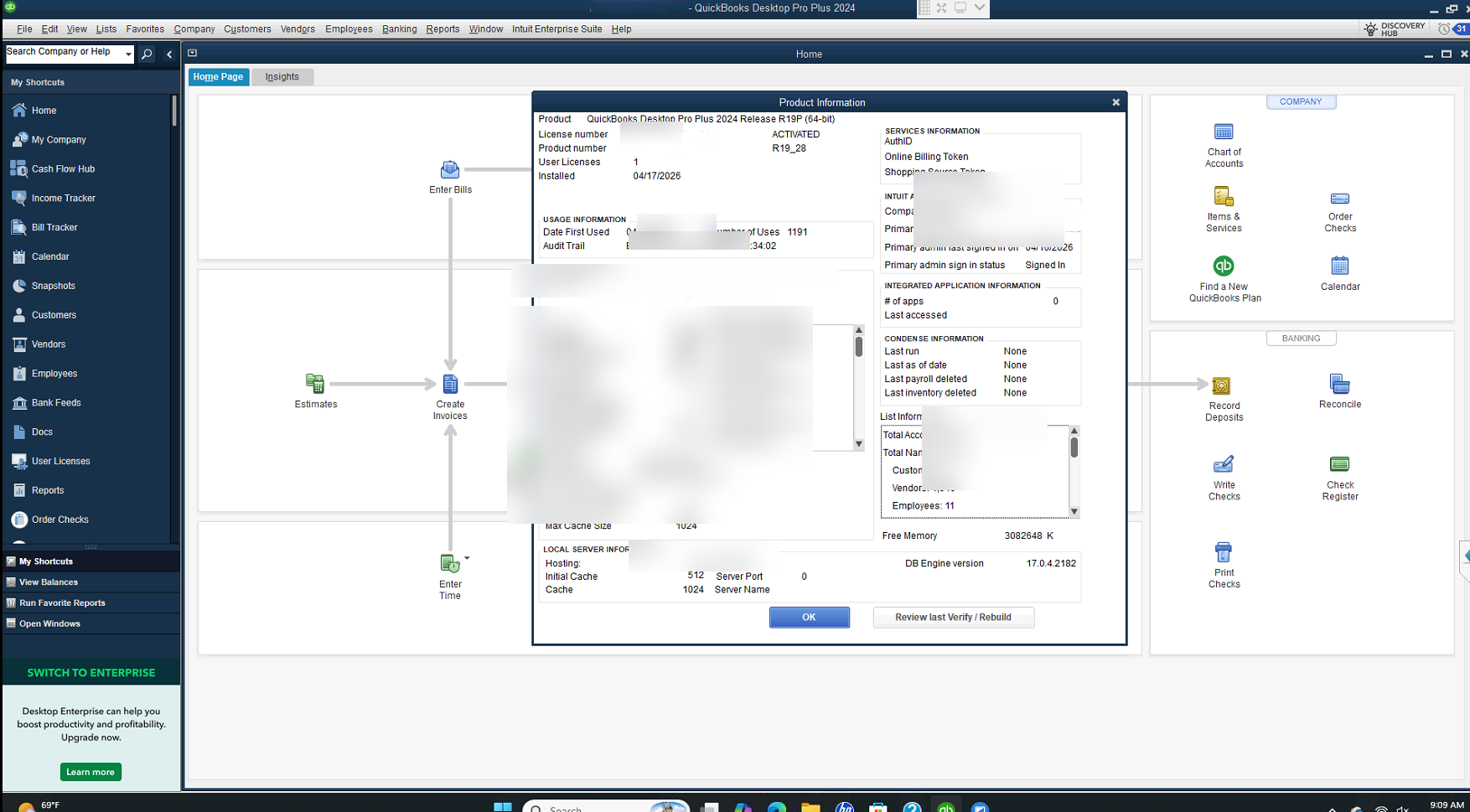
QuickBooks Desktop: Pro Plus 2024
Customer Request: Add a signature image to checks so it can be printed automatically.
Watch: How to Add a Signature to Checks in QuickBooks Desktop
QuickBooks Desktop Pro Plus 2024 product information
QuickBooks Printer Setup signature option
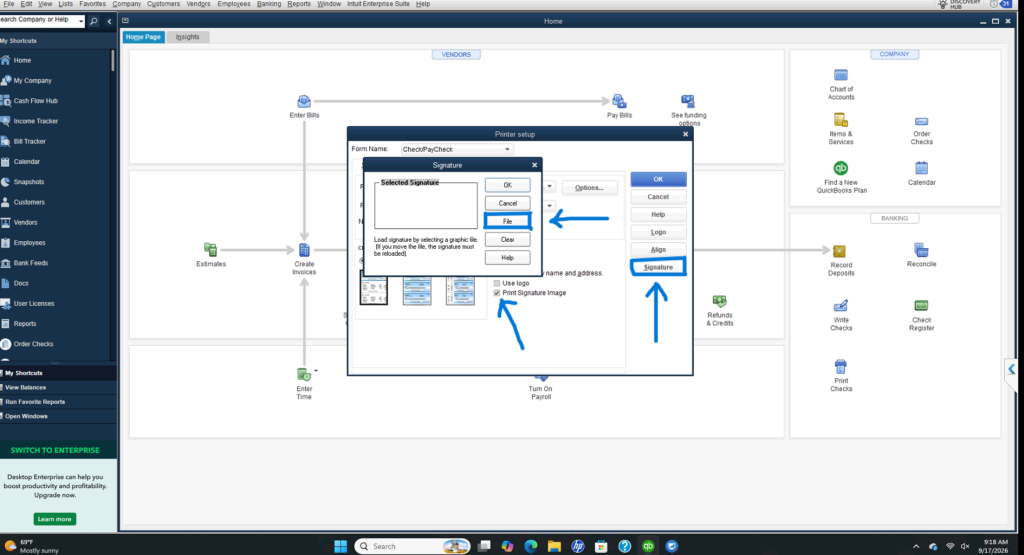
How to Add a Signature to Checks in QuickBooks Desktop
Adding a signature to checks in QuickBooks Desktop can be done directly through the Printer Setup options. In this case, the customer already had the signature saved as an image file, so we only needed to add that image to the check setup.
Follow these steps:
- Open QuickBooks Desktop.
- Go to File → Printer Setup.
- Select the appropriate check form, such as Check/Paycheck.
- Click the Signature button.
- In the Signature window, click File.
- Browse to the location where the signature image is saved and select the file.
- Confirm the signature image is loaded, then click OK.
- Save the printer setup and test a check to verify the signature prints correctly.
Case Validation — Signature Successfully Added
After uploading the signature image through QuickBooks Printer Setup, we validated the configuration with the customer.
The signature was successfully added to the check setup and was available for printing on the checks. The support request was resolved without requiring a QuickBooks repair or reinstallation.
QuickBooks Desktop Support & Error Fixes
Official Intuit Guide: Create and Use Electronic Signature for Checks and Paychecks